
How to set up QR code attendance for students in RTOPilot
Streamline student attendance with QR code check-in in RTOPilot. This guide shows your trainers how to mark attendance manually or let students check in by scanning a QR code

Subscribe to receive the latest blog posts to your inbox every week.

With RTOPilot, your trainers can mark attendance in two ways: manually, or by letting students check themselves in with a QR code. QR code attendance tracking gives your trainers more time back in each session, since there’s no roll call to run and no record to re-enter later. Every check-in is time-stamped automatically, which makes attendance easier to produce at audit time.
This guide walks through how QR code check-in works, how to turn it on for a class, and how to mark attendance manually when needed.
What is QR code check-in
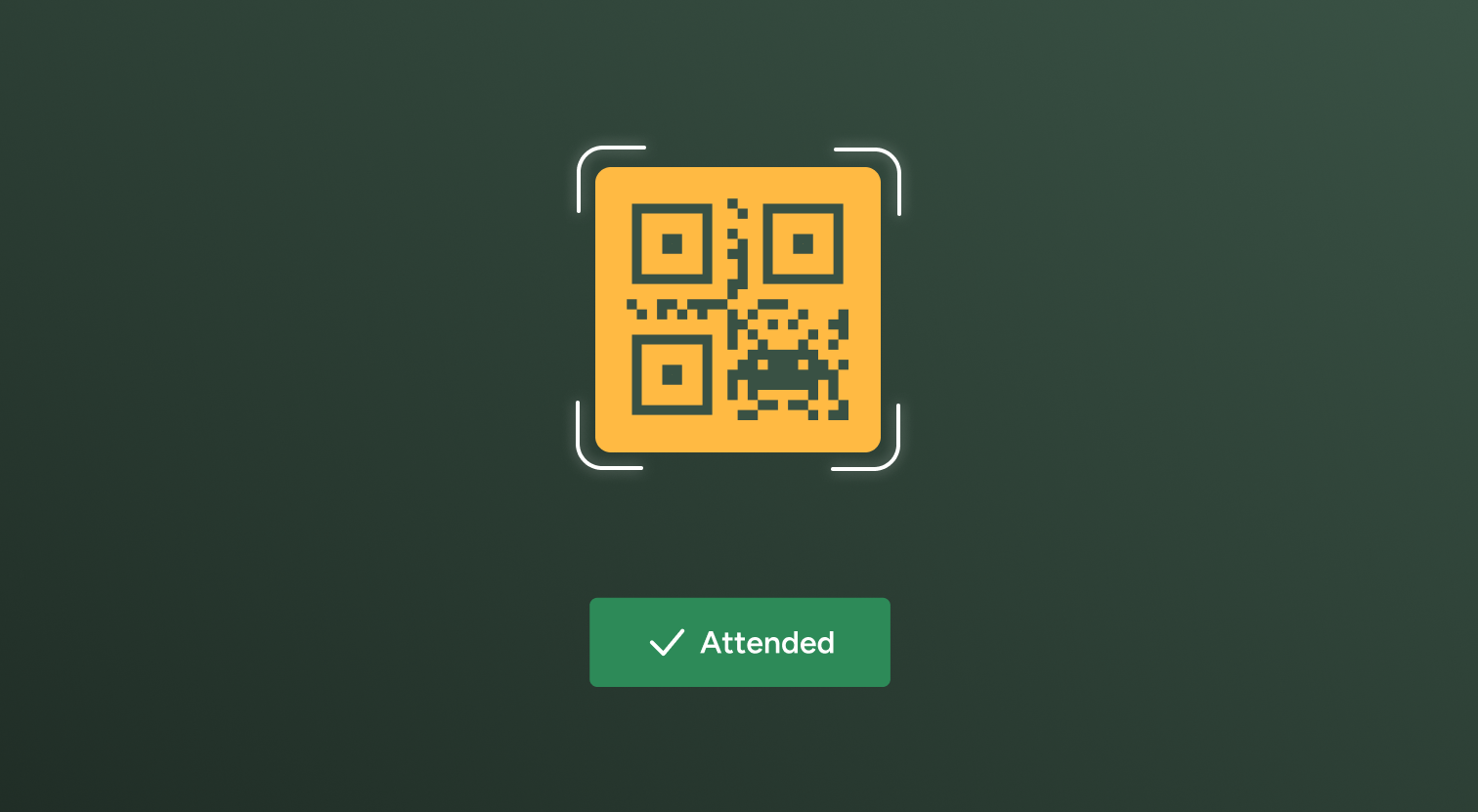
QR code check-in is part of Class Mate, RTOPilot’s in-class admin tool and one of two ways RTOPilot handles RTO attendance tracking. Your trainer displays a QR code for a session, and students scan it with their own phone to mark themselves present, instead of a trainer calling the roll or passing round a paper sign-in sheet.
Class Mate replaces paper rolls with digital check-ins. Trainers can mark attendance manually, or students can scan a QR code to sign in, and the record updates in the system either way.
Note: This is different from the enrolment QR code. A check-in QR code marks attendance for a student already enrolled in the class. A separate enrolment QR code, where your organisation allows it, lets a new student enrol into the class itself.
How to turn on QR check-in for a class
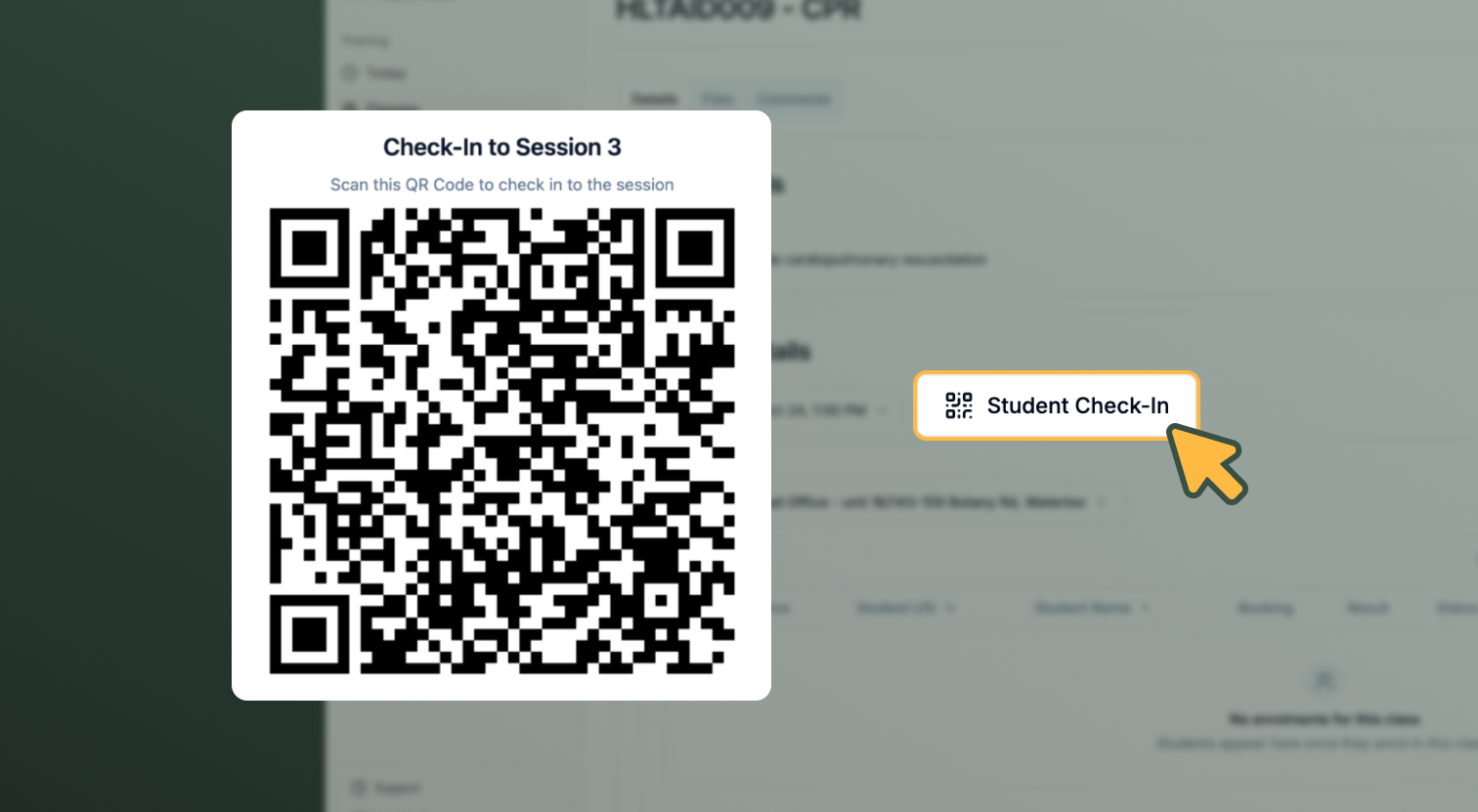
To display the QR check-in code for a session, your trainer needs to:
- Open the class from Classes in the Trainer Portal.
- Select View Details.
- Choose the session.
- Select Student Check-In.
The QR code appears on screen, ready for students to scan.
Tip: Watch the video to see how to open a class and start taking attendance from the Trainer Portal. How Trainers Manage Class Details with RTOPilot
How a student checks in
A student scans the displayed QR code with their phone to sign themselves into the session. No app is needed. For students who don’t have a phone on hand, or run into a scanning issue, your trainer can mark them present directly from the class view.
How to mark attendance manually
QR code check-in doesn’t replace manual attendance marking; it sits alongside it. Your trainer can still mark students present or absent directly from the Trainer Portal, on any device, whether or not a class uses QR check-in. This keeps attendance workable for sessions where not every student has a smartphone, or where a trainer prefers to mark attendance themselves.
Tip: RTOPilot’s attendance tracking software covers both methods from the same screen. For more detail, see Attendance Tracking & Training Delivery Software.
How check-in data reaches your records
Attendance, assessment, and progress data captured through Class Mate syncs automatically to your student management system, whether a student checked in by QR code or a trainer marked them manually. Each attendance record is time-stamped, so there’s no manual reconciliation between a class roll and your student records.
How to download the attendance sheet
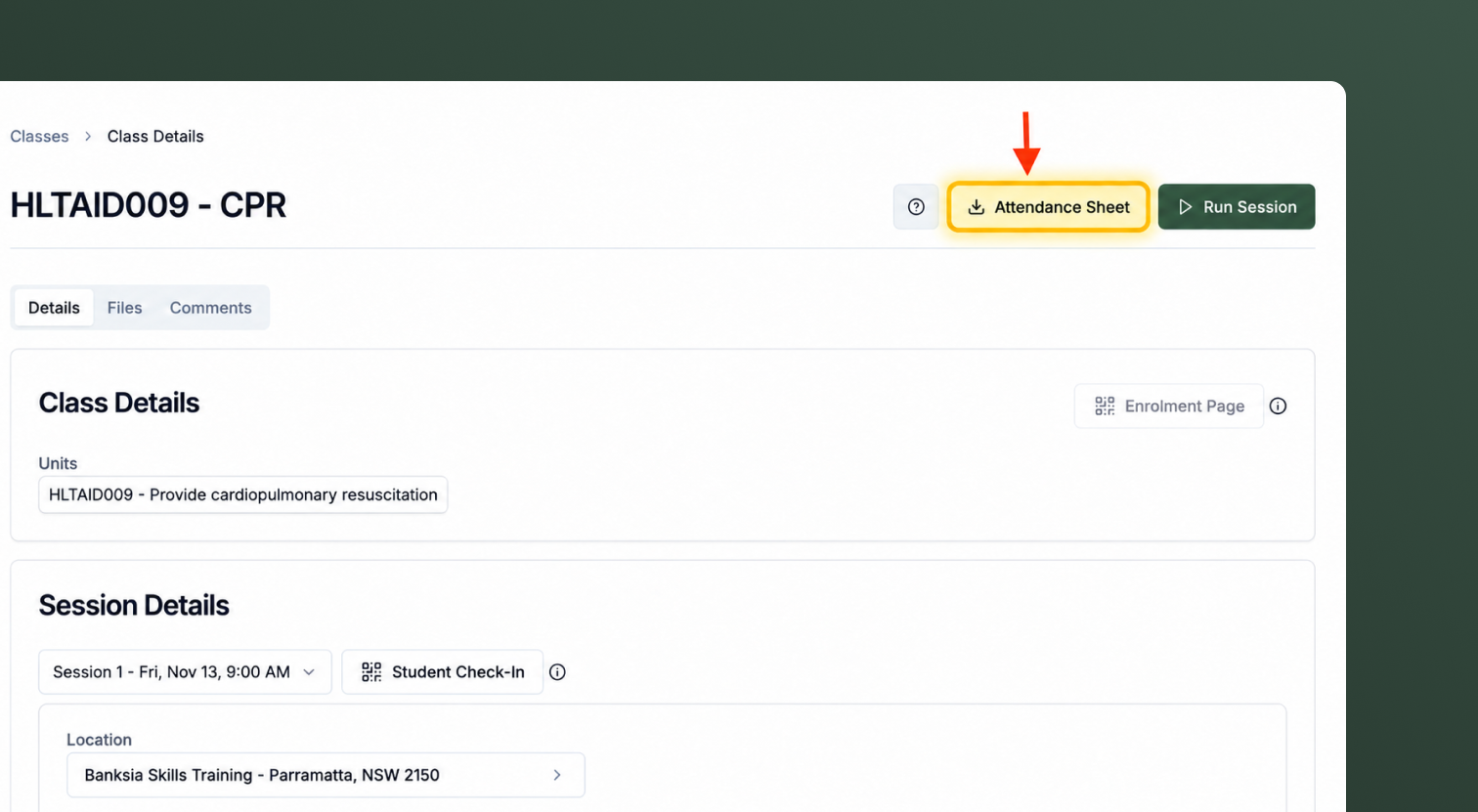
Your trainer can still generate a downloadable attendance sheet for a session, as a PDF or spreadsheet, with your RTO’s branding applied.
- Open the class.
- Select Attendance sheet.
- Download as PDF or spreadsheet.
How QR code check-in supports compliance
Each QR check-in is time-stamped the moment a student scans, so your RTO has a digital record instead of a paper sheet that can go missing or get filled in after the fact. This supports the record-keeping obligations your RTO holds under the Standards for RTOs. For the broader compliance picture, including AVETMISS reporting, see AVETMISS Compliance.
Frequently Asked Questions
No. Your trainer can still mark attendance manually at any time, on any device. QR check-in is an additional way for students to check themselves in, not a replacement.
Your trainer marks that student present directly from the class view, the same way attendance was marked before QR check-in was available.
Yes. Attendance recorded through Class Mate, whether by QR scan or manual marking, syncs automatically to your student management system.
Yes. Attendance sheets download as a PDF or spreadsheet, with your logo and branding applied if you’ve configured it in Branding & White-Label.

Is your RTO future-ready?
See how RTOPilot can help.
Designed to help you spend less time and save money in running your RTO.
