
A Guide to the RTOPilot Trainer Portal
Learn how to use the RTOPilot Trainer Portal. See how trainers can manage classes, attendance, calendar sync, and resources, with complete admin visibility from a mobile-friendly portal.

Subscribe to receive the latest blog posts to your inbox every week.

The RTOPilot Trainer Portal is the browser-based workspace where your trainers manage their day. Set it up once, and your trainers see their schedule, mark attendance, run assessments, and pull up course files from any device. This article explains how the portal fits into your RTO, what each section does, and how to set your trainers up to use it.
Note: The Trainer Portal is role-based. Trainers only see classes, students, and files assigned to them. They can’t access admin screens such as enrolment management, financial data, or organisation settings.
Set up your trainer accounts
Before your trainers can log in, set up their accounts in the admin side of RTOPilot.
- Create the trainer as a user.
- Add the trainer to each class they’re teaching.
- Share the Trainer Portal URL with the trainer.
- Confirm two-factor authentication is enabled on the account.
The trainer receives an email with their login details. On first login, the system prompts them to set a password.
Watch: How to Manage Your Training Sessions in RTOPilot
Your trainer sees all class details in one tab
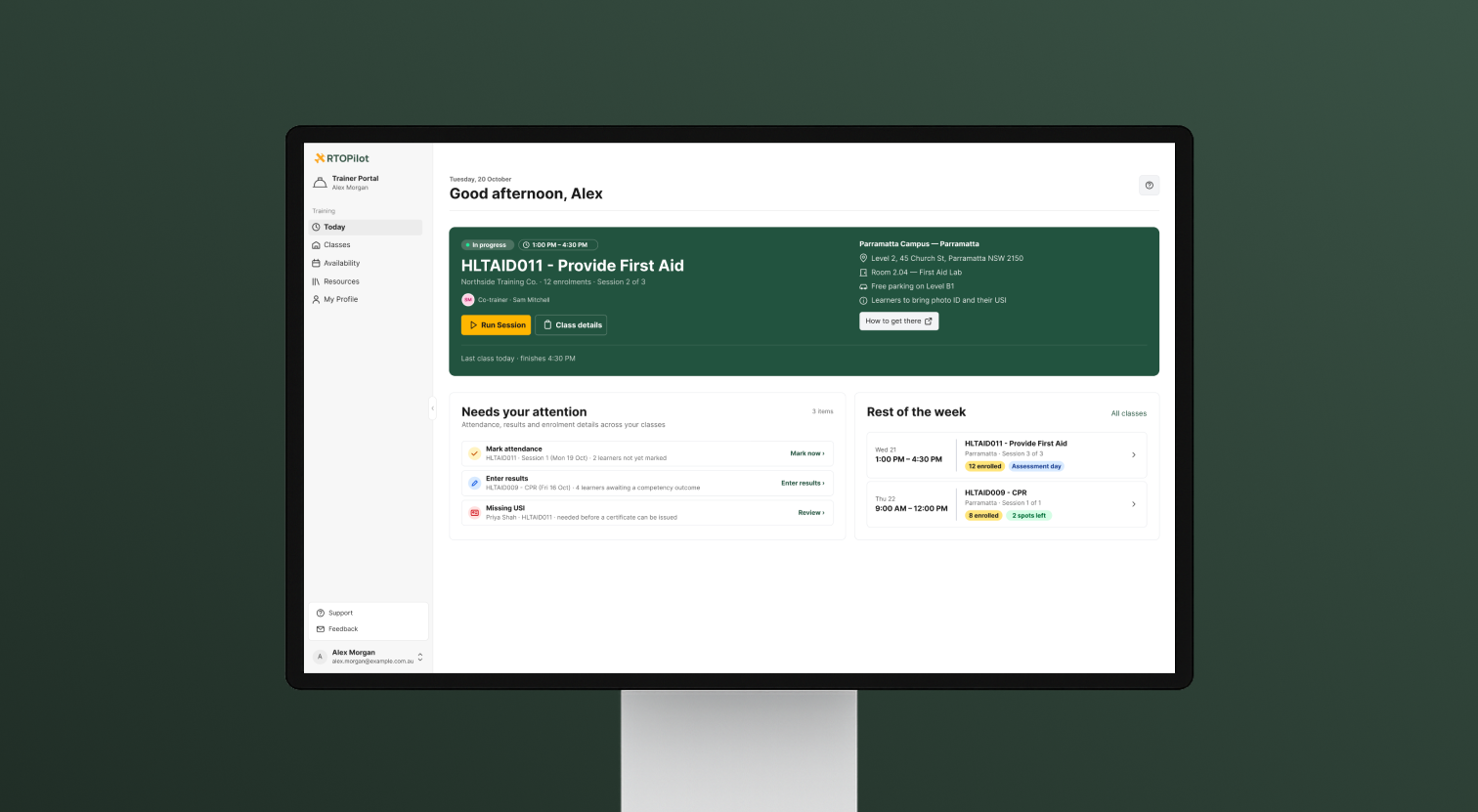
The Today view in the trainer portal is the first screen your trainers see after logging in. It shows the current class, outstanding actions, and the week ahead. An accurate Today view lets trainers check their own schedule without contacting admin.
The Today view includes:
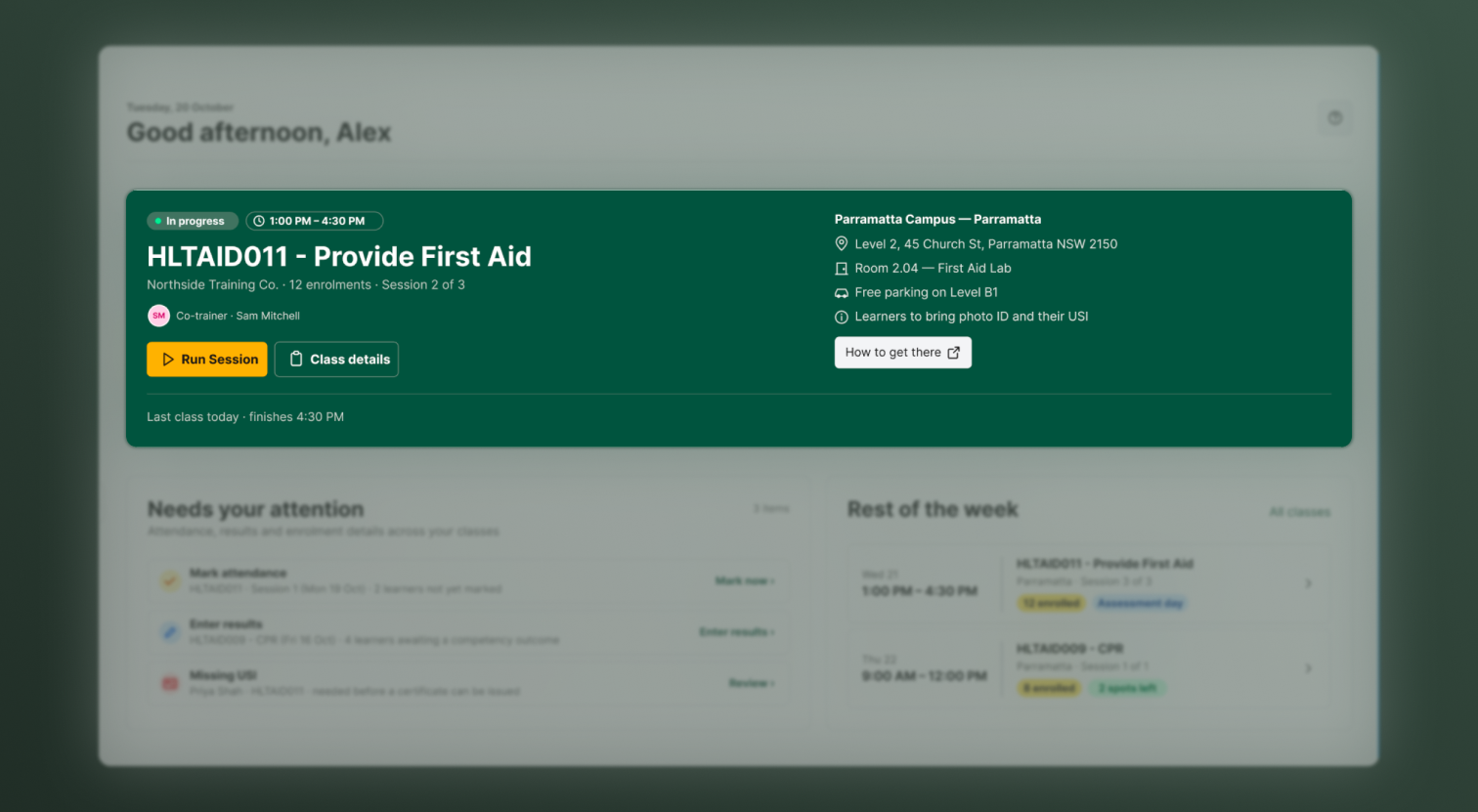
- Current class card: session number, start and finish time, location, co-trainers, address, parking notes, access details.
- Run Session button: opens Run Mode for a step-by-step class workflow.
- Class details button: opens the full class page.
- How to get there link: opens the venue in Google Maps.
- Needs your attention panel: lists attendance, results, and enrolment items the trainer still needs to action.
- Rest of the week panel: shows upcoming classes with session count and enrolment numbers.
Run a class and take attendance
For attendance, your trainer can mark it from anywhere, on any device. For a smoother workflow, your trainer can use Run Mode, which gives a single window for attendance, marking, and sign-off, so there’s no switching between screens mid-session.
To start a class in Run Mode, your trainer:
- Opens the Trainer Portal.
- Taps Run Session on the current class card.
- Follows the on-screen steps for attendance, assessment, and sign-off.
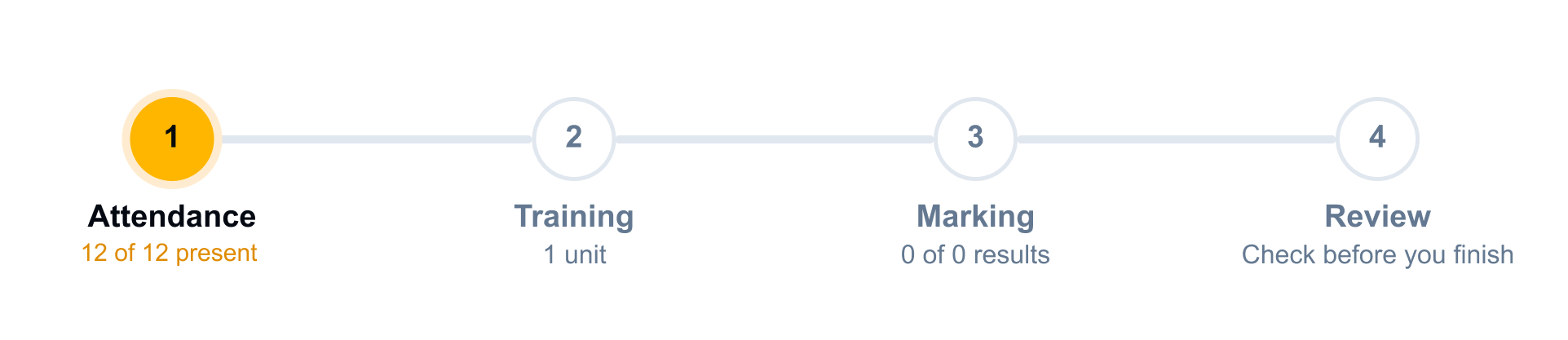
Note: Each attendance record is time-stamped automatically, so attendance data feeds into student enrolment records and AVETMISS reporting with no manual reconciliation.
To download the attendance sheet:
- Open the class.
- Select Attendance sheet.
- Download as PDF or spreadsheet.
Attendance sheets carry your RTO’s branding when you configure it in Branding & White-Label Experience.
For more detail on this feature, see Attendance Tracking & Training Delivery Software.
Manage classes and schedules
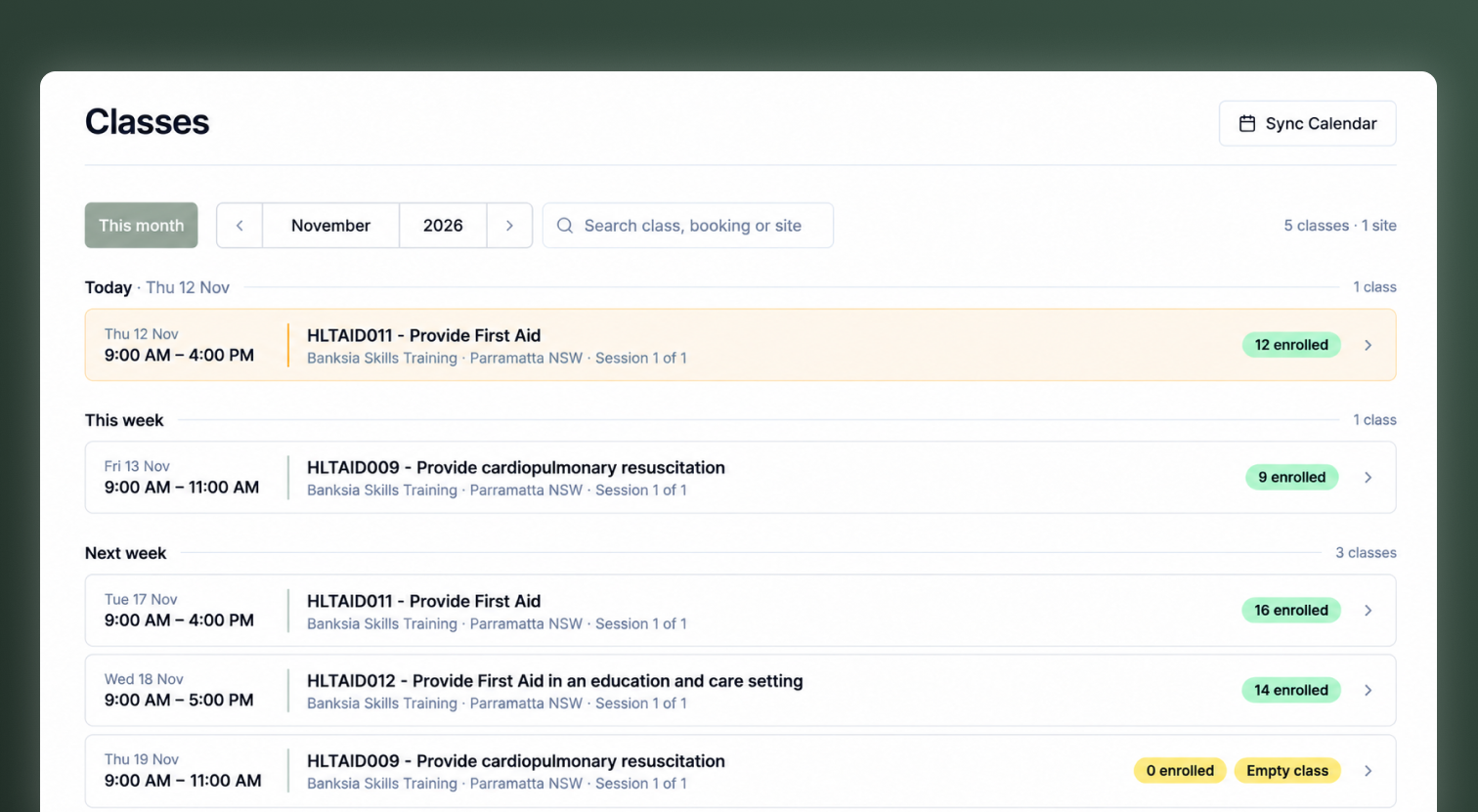
RTOPilot’s trainer portal software shows trainers every class assigned to them on the Classes page. Each class card shows the course code, session number, date and time, location, enrolment count, and co-trainers.
Your trainer can:
- Open Classes in the sidebar.
- Select a class to see enrolled students, session details, and linked resources.
- Sync the schedule to Outlook, Google Calendar, or Apple Calendar.
Tip: See the Class Details page in action, including attendance, LMS content, and outcome marking
Set and share trainer availability
The Availability page lets your trainers set their regular hours and block out dates when they are not available. These settings show up on the trainer’s record and in the session builder’s trainer picker, so your coordinators can schedule classes without back-and-forth.
Your trainer can:
- Open Availability in the sidebar.
- Set weekly hours.
- Block out specific dates.
- Add notes about scheduling.
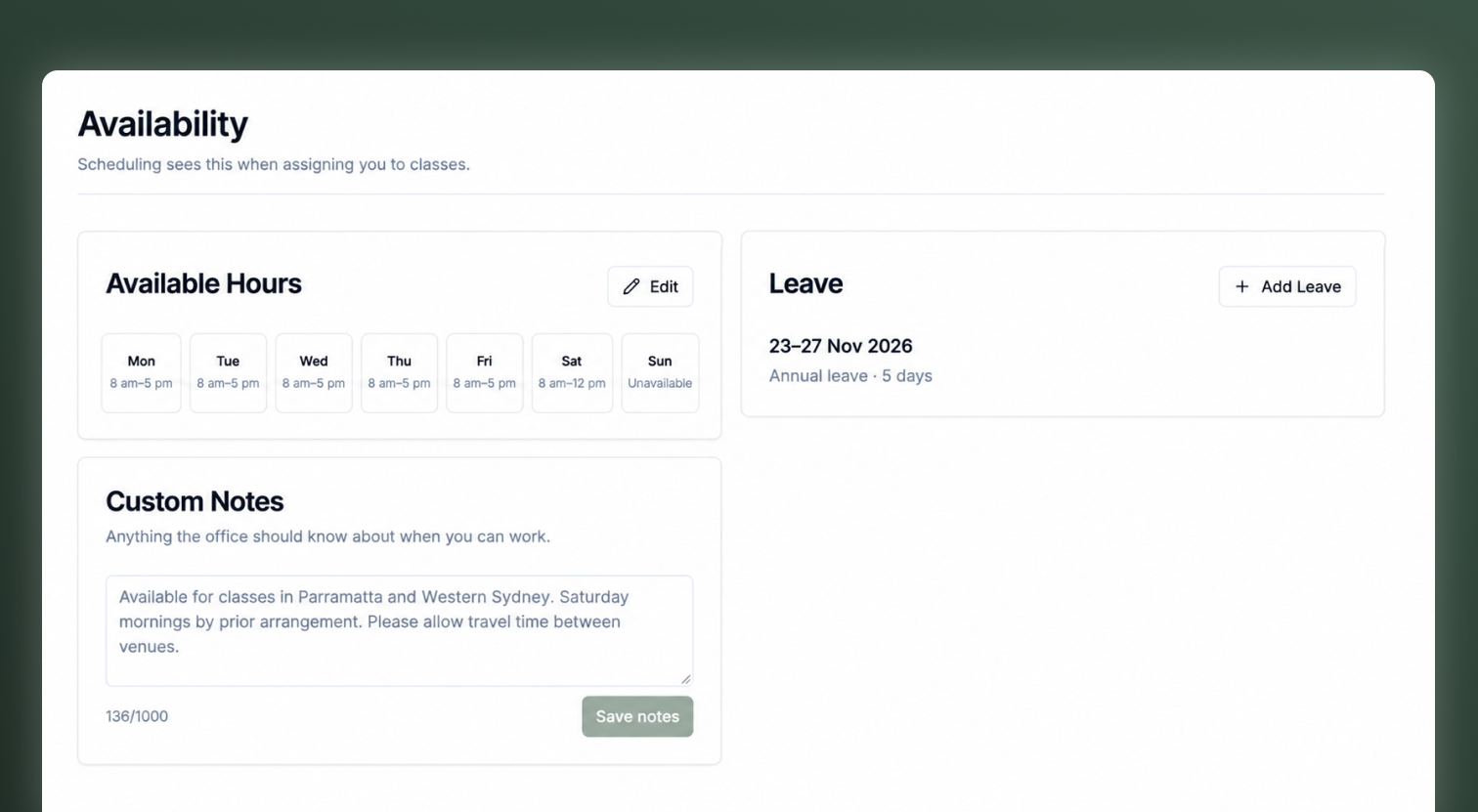
Your admin team sees availability when assigning trainers to new sessions, which cuts scheduling conflicts and reduces email threads.
Tip: The RTOPilot calendar checks for conflicts when admins create or update training, and flags a clash before you commit the schedule. If you’re an admin, see how it streamlines scheduling for your coordinators and trainers.
Watch: How to streamline Your RTO Training Sessions with RTOPilot’s Calendar
Organise trainer resources
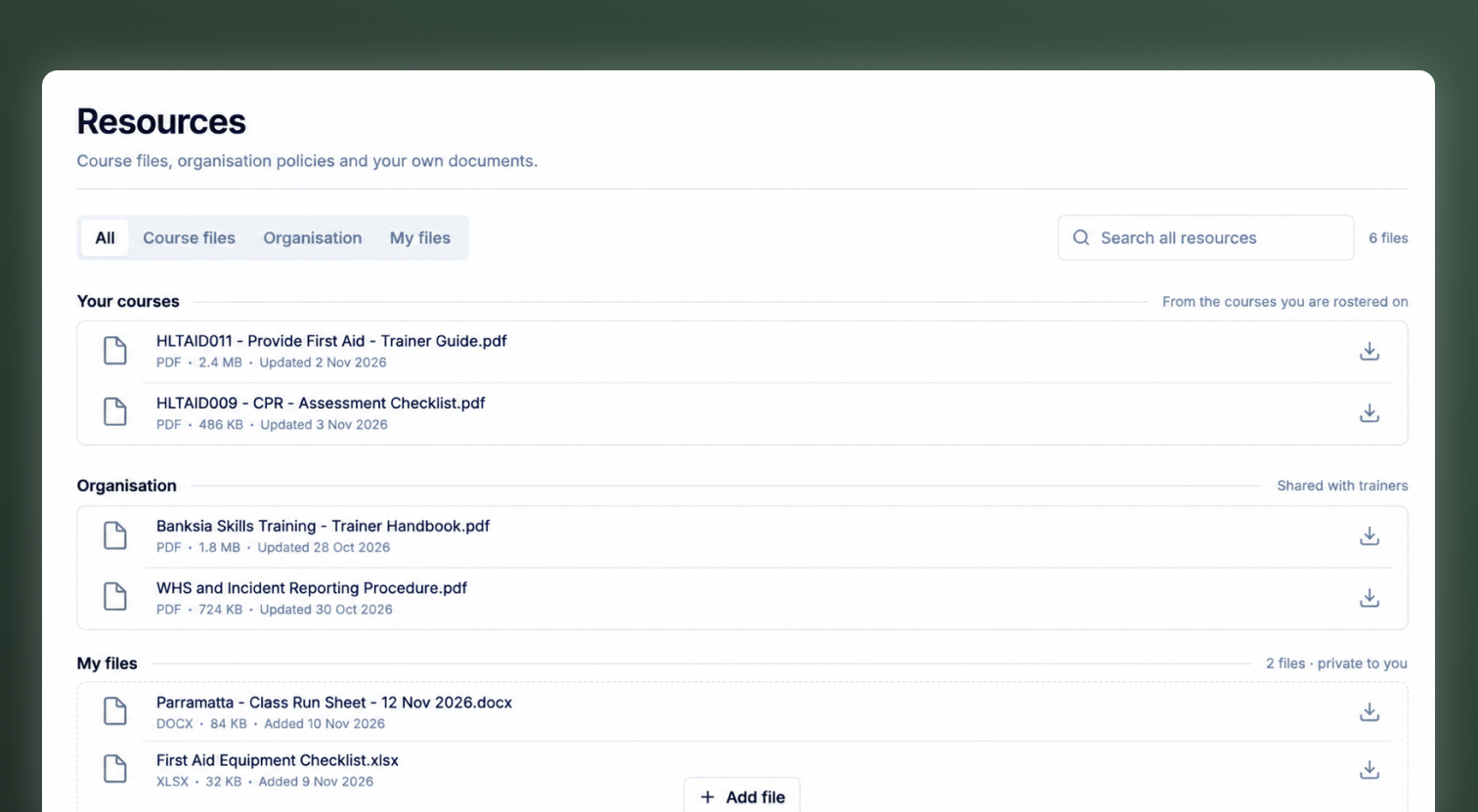
The Resources library gives trainers one place for course files, organisation documents, and their own private uploads. Each file is linked to the class it belongs to, so your trainers are not digging through emails or shared drives.
To access resources:
- Open Resources in the sidebar.
- Browse by class, course, or document type.
- Open or download the file.
Trainers can also upload their own private files, which only they can see.
Tip: For admin-side file management, see Resource & File Management.
Message students and admins
Trainers can message students and admin staff directly from the portal. This keeps class communication tied to the enrolment record and out of personal email.
Trainers use messaging to:
- Confirm class details with students.
- Share pre-class instructions.
- Flag scheduling questions to admins.
- Follow up on absent students.
Keep trainer profiles current
The My Profile page lets trainers update their contact details and record their trainer currency. Keeping these records current supports your compliance obligations under the 2025 Standards for RTOs.
Trainers can:
- Open My Profile in the sidebar.
- Update personal details and password.
Tip: If a trainer needs a change that is not available in self-service, admins can update the record on their behalf.
Secure your portal access
The Trainer Portal uses role-based access, so trainers only see data for their assigned classes. Student check-in and enrolment QR codes open in a separate window instead of a modal, so displaying a code to the room does not risk exposing student information behind it.
Security features include:
- Two-factor authentication on trainer accounts.
- Role-based access that hides admin screens.
- Separate windows for check-in and QR code displays.
- Audit logging on attendance, outcomes, and messages.
For more on security controls, see Security & Privacy.
Frequently Asked Questions
This usually happens when the trainer hasn’t been added to that class. Check that the trainer is assigned to the class from the admin side, then ask them to refresh the portal.
A trainer resets their password from the login page. If they’re locked out entirely, an admin can trigger a new invite from the trainer’s user record.
A trainer updates their own name, email, and phone number from My Profile. If a detail needs changing that isn’t editable from their side, an admin can update it directly on the trainer’s record.
A trainer can generate a single-use login code from the class’s enrolment list. The code is valid for 24 hours and lets the student sign in without a password.
The Trainer Portal is included with your RTOPilot subscription at no extra cost.

Is your RTO future-ready?
See how RTOPilot can help.
Designed to help you spend less time and save money in running your RTO.
